Start with eligibility and the real business
A verification code or video is not a way to create a local presence that does not exist. Google says a Business Profile generally requires in-person contact with customers during stated hours; online-only businesses, lead-generation agents and listings for a property for sale are among its ineligible examples. A Hong Kong retailer selling only through a website should therefore settle eligibility before planning a filming session. If customers can visit a staffed shop, or the business visits customers in person, document that real operating model. The profile name, location and customer-facing arrangement should describe what people will actually encounter.
There are three useful operating cases. A storefront receives customers at a physical place with permanent signage. A service-area business travels to customers and does not serve them at its address. A hybrid does both. That distinction changes the evidence Google expects in a video and whether the address should be public. Google specifically says a service-area business that does not serve customers at its location should not put that address on the profile. A home-based repair service may still need to prove its operating location privately during verification. Hiding a home address from customers and showing location evidence to Google are separate decisions.
Before seeking a new listing, find whether the business already has a profile. Sign in with the account associated with the business and search its name and city or “my business,” as Google instructs. If an unclaimed real profile exists, claim it; if there is no profile, add one through the official flow. Do not create another listing because the first account is inaccessible or a verification attempt failed. That would turn an access problem into a duplicate-profile problem. Record who at the business controls the account and who can physically show the shop or working equipment, so the process can be completed without borrowing an agency’s identity.
Follow the option shown in the profile
Google selects the available verification methods automatically; owners cannot simply choose an unlisted phone, email, postcard or video method. Options depend on business type, public information, region and hours, and some profiles need more than one method. Read the current “Get verified” screen before arranging staff or equipment. If phone or SMS appears, confirm that the business can answer the displayed number or receive the message; an interactive voice response system will not take the code. If email appears, make sure an authorized person can use the address shown. Never ask staff to forward a code into an informal chat.
A postcard is not a universal backup. Google says mail verification is unavailable for some businesses. If the option is offered and chosen, check the mailing address before requesting it. Google says most codes arrive within 14 days, expire after 30 days, and become invalid if the business name, address or category is changed while waiting or a new code is requested. Those are reasons to avoid unrelated profile edits during that particular wait, not a promise of delivery by a fixed date. Keep the code private: Google says it will never ask you to share it, including with people who manage the profile.
A live video call, where offered, is also a distinct method from uploading a recorded video. Google says live calls may not be available for every business and are available only within the location’s business hours. The owner should be at the actual business, have a device that supports the call, and be ready to show surroundings, products or tools and access to employee-only space. Do not tell a manager to search for a hidden menu if the call option is absent. The practical decision is whether the people and evidence needed for the offered method can be brought together safely at the real location.
Plan one truthful video
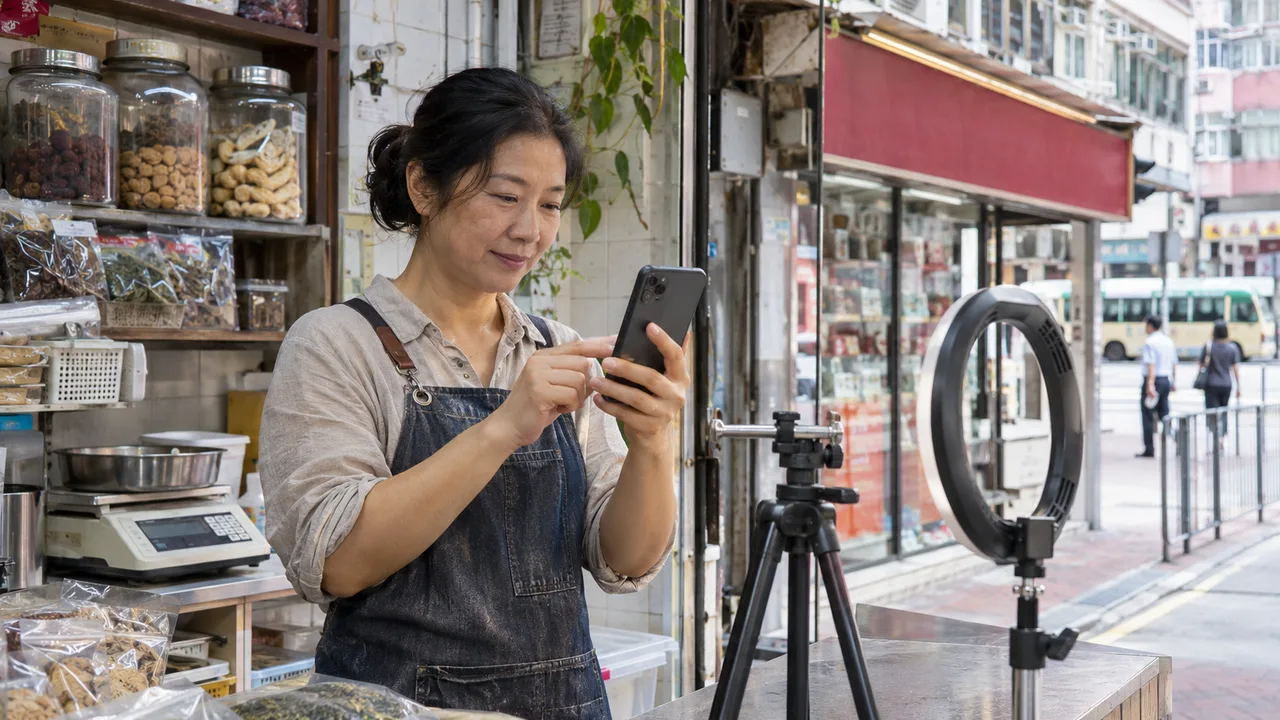
For an offered business-video method, Google requires a new live capture, recorded and uploaded from a mobile device through the Business Profile. The recording must be unique, unedited, continuous and at least 30 seconds long. A polished advertisement, footage from security cameras, stitched clips or a file recorded earlier and uploaded later do not meet those instructions. Plan a walking route before pressing record, because you should not need to stop and assemble a better story afterward. Ask customers and other staff to move away, then inspect the camera frame for faces, documents and reflective surfaces before starting.
A storefront or hybrid should show three kinds of evidence in one continuous sequence: context outside that establishes the mapped location, permanent signage bearing the profile name, and access or work that demonstrates management. Google gives street signs, building numbers and nearby businesses as location clues; a signboard, wall or window sign for the business itself; and an employee-only area, cash register or point-of-sale system for authority. The name in the video should match the Business Profile. A temporary paper sign or a logo added to the footage cannot replace a real permanent fixture. Film what exists, and correct a genuinely inaccurate profile before trying to stage proof.
A service-area operator needs a different route. Google asks for local identifiers around the operating address, evidence that the business exists through tools, workspace, products or branded materials, and proof the filmer manages it. A technician may show a street sign near the base, the real equipment used on visits, then access to a business-only vehicle or matching non-sensitive document. That example is a plan, not a guarantee of acceptance. Do not publish a residential base to create a storefront impression, and do not film a customer site merely because it looks more impressive. The evidence should substantiate the actual service-area business.
Google expressly excludes bank-account, tax and identity numbers, private information and other people’s faces from the recording. A utility bill or invoice may help demonstrate a service-area business, but first cover material that should not appear by choosing a different non-sensitive document or camera angle; do not edit the submitted video after recording. Do not display a customer’s name, an open till screen with transactions, an employee roster or a delivery label while demonstrating authority. You can demonstrate control by unlocking an employee area without showing its security code. Brief everyone present that this is a platform verification submission, not a public marketing film.
Submit, review the result and repair the actual gap
On the mobile Business Profile, Google’s video path is Get verified, Business video, Next, read the requirements, Start recording, review, and Upload video. The exact options shown remain authoritative for that profile. Google says review can take up to five business days; that is a review window, not approval or publication. Keep the owner’s account available to read the result. If Google asks for another method, complete the method actually displayed. If the video fails, read the stated issue before recording again rather than immediately repeating identical footage.
Consider a bakery with a genuine shop but a failed video marked “business name not visible.” The repair is to plan a new continuous route from a recognizable street marker to its permanent sign and then to an employee-only task, making sure the matching name is legible in the camera without adding overlays. If the issue is missing nearby context, show the area before entering. If the actual shop has no permanent signage, do not substitute a temporary printout while claiming it has one. Resolve the real-world discrepancy or seek guidance through an available official support route. Google’s instructions say a new video should include earlier evidence plus the missing proof.
Treat verification as a documented business task: retain the profile URL or identifier, account owner, chosen offered method, date submitted, and Google’s actual response in a private business record. Do not store or circulate verification codes or sensitive video content with the editorial material. Verification establishes control of a profile for editing; it does not certify service quality, guarantee a position in Google Search, or waive the duty to keep hours and address accurate. A useful final check is to view the profile as a customer would after the stated result, then correct any inaccurate public fields through the normal profile workflow.
Before making a verification appointment, prepare a small evidence checklist that names the person filming, the profile name exactly as shown, the public address setting and the three things that can be shown without exposing private records. Walk the route once without recording. Check that the permanent sign is actually visible in daylight and that any staff-only access can be demonstrated safely. If a manager cannot show a required element, solve that gap before submitting; repeated attempts with the same missing evidence waste review time. This preparation also gives an agency or new staff member a factual record of what was shown, without sharing codes or copies of sensitive documents.
Before you proceed
- Confirm real in-person eligibility before adding or claiming a profile.
- Use only the verification method offered on the current profile.
- For video, prove location, existence and authority in one continuous mobile recording.
- Read Google’s actual review result and repair the stated evidence gap.