Choose a photograph for a customer decision
A useful Business Profile photo answers a question a customer has before visiting or contacting you. Can I recognise the entrance from the street? Is there a seat or reception desk? Does the service look like the service described? What kind of products are actually available? Google’s help points to storefront, product and service photos, and says an exterior photo helps a visitor recognise the business. Start with those customer tasks rather than a gallery chosen only for appearance. A beautiful close-up of coffee may be less useful than a clear image of the door when people often struggle to find the premises.
Make a small shot list based on the business. A street-facing shop could need an approach view from the direction customers arrive, the entrance at a useful distance, a truthful interior, and representative work or merchandise. A service business that travels to customers might instead prioritise real team-at-work and equipment images, while protecting clients’ privacy. Google’s business-specific tips describe exterior, interior, product and work photos as different types, with examples of the decisions each supports. The suggested minimums on that help page are guidance for those types, not a requirement that every business fabricate a category of image that does not fit its operation.
Treat the profile as a current description, not an archive. A refurbished entrance, changed counter or discontinued product can make an old photo actively misleading. Keep a dated list of the visible images and what each depicts. When a meaningful physical detail changes, take a new photograph and compare it with the public profile. Avoid staging a service that the business cannot supply that day. If staff or customers appear, obtain the necessary permission for the intended use and avoid exposing documents, screens, badges or personal details in the background. Google places responsibility for submitted images and applicable laws on the business.
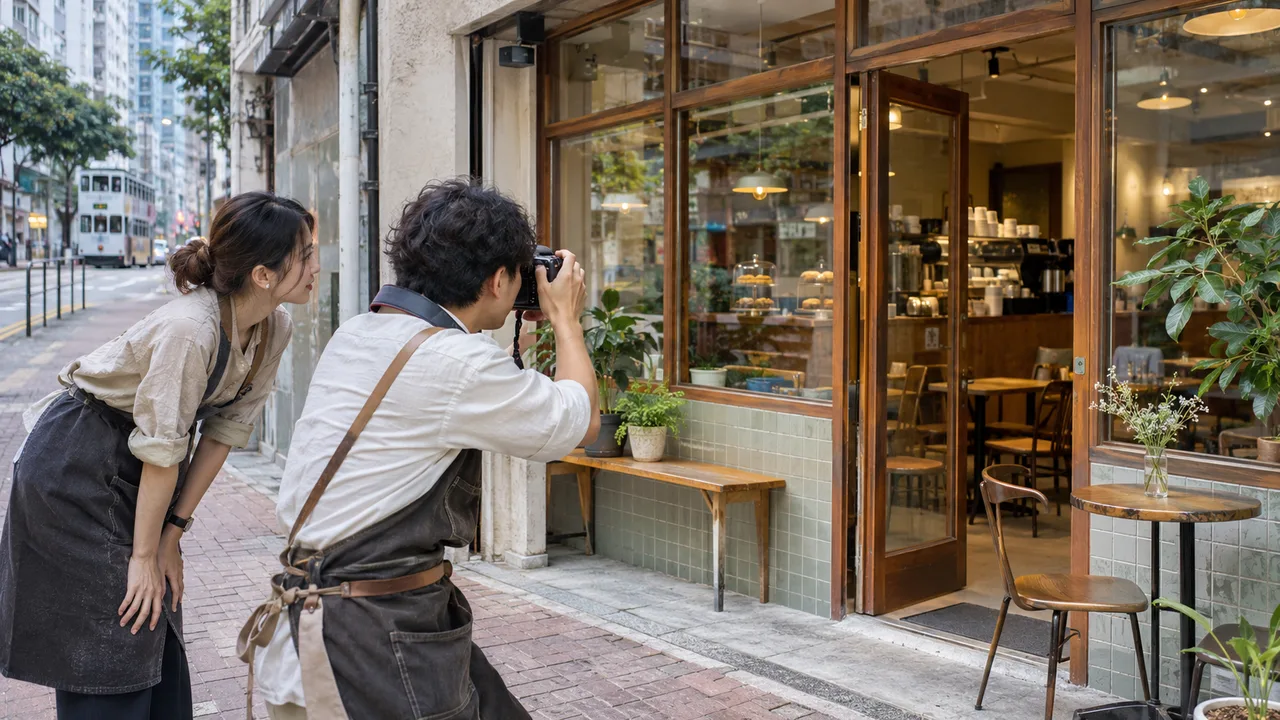
The cover illustration of this article is generated editorial artwork showing a plausible photo-taking scene. It is not evidence of any real merchant premises. Google’s merchant-photo guidance asks for well-lit, in-focus images that represent reality and discourages significant alteration, excessive filters or AI. Accordingly, a business should photograph its own real location, products and work for its Business Profile. Do not take a generated illustration, an invented customer scene, a stock photograph of someone else’s shop, or another organisation’s logo and present it as documentation of your business.
Prepare files and upload through the owner interface
Check the actual file before uploading. Google’s current desktop help lists JPG or PNG, a size between 10 KB and 5 MB, a recommended 720 by 720 pixels, and a minimum 250 by 250 pixels. These are photo guidance values, not a reason to force every composition into a square crop. Keep the useful subject legible at a small display size and inspect the edges so a sign, entrance or product is not accidentally cut off. A photograph may technically satisfy the dimensions yet still fail to tell a customer where to go. Preserve an original file for the business’s records.
Think separately about a logo, a chosen cover photo, and ordinary business photos. Google says a logo can help recognition and a cover photo should represent the business, but selecting a cover does not guarantee it will appear first. Google may select a user-submitted image if the chosen cover is low quality or other sources suggest it is a poorer representation. Do not promise the team that its preferred hero image will control every customer view. Instead, ensure the whole visible set is honest, recognisable and reasonably current. Check that the logo you submit is actually the business’s mark and that you hold the right to use it.
Google’s desktop instructions say to open Search or Maps, search for the business name and city, choose Photos, then Add photos and select the files. For a cover or logo, choose the corresponding Add a cover photo or Add a logo action; use Change cover or Change logo to replace one. This assumes the person is managing the correct verified profile. Before selecting files, confirm the business name and location shown in the owner interface, especially when an agency manages several branches. Upload only the intended local photographs and record which branch and scene each file belongs to.
Do a last editorial check before uploading. Are the entrance and surrounding landmarks shown without revealing another merchant as though it were yours? Is a price board still accurate, or would a text-free angle be safer while prices change? Is a person in the picture comfortable with this public use? Are all product examples currently available, or clearly representative rather than a false inventory promise? Google’s photo policy applies in addition to file specifications. A technically accepted JPG is not automatically a truthful or rights-cleared publication. When one answer is uncertain, reshoot or leave that particular file out until the underlying fact is checked.
Check review status and maintain the public gallery
An upload receipt is not proof that customers can see the image. Google describes pending, not approved and live statuses. Pending can mean processing or an unverified profile, and pending media is not public. Not approved media is flagged under policy and does not display. Live media appears on Search and Maps. Google says appearance can take up to 24 to 48 hours, so record the submission time and return to the owner interface. Avoid repeatedly uploading the same file merely because it is not yet visible; Google advises checking for duplicates before retrying.
Once a photo is live, check the public result on Search and Maps on a typical phone and desktop viewport. Look at the crop, sequence, and whether an unfamiliar customer can identify the place. A cover selected in the owner interface might not be the first public picture, so inspect the entire first impression. If an old photo depicts an entrance that no longer exists, remove your own file using Photos, select the photo and Delete, then confirm. Google’s help treats customer-added photos separately: merchants can request removal of those, rather than assuming the same delete control applies.
Consider a hypothetical café that has moved its entrance from a side lane to the main street. The owner retains one truthful interior photo, replaces the exterior shot with a current approach view, and checks whether the public gallery still leads people toward the old door. A menu close-up with an expired price is removed or replaced. The owner does not upload an AI render of the refurbished frontage as if it were a photograph. After the replacement is live, a colleague unfamiliar with the premises uses the profile on a phone and walks the route. The test is whether the pictures help the visitor, not whether a certain view count increases.
Assign a simple maintenance trigger rather than a fixed stream of decorative uploads. Renovation, a changed sign, new reception flow, a discontinued flagship item or a repeated customer question can justify a fresh image. Record what changed, the old photo removed, the new file submitted and the date it became public. Keep source files and permission records with the business, not embedded in the public profile. If an image is rejected, check policy and factual accuracy before changing it. If the issue is simply a pending review, wait for the status to resolve. This keeps the gallery a reliable guide rather than an accumulation of outdated marketing visuals.
A useful final test is to hand the live profile to someone who has never visited. Ask that person to identify the correct entrance, describe what can be bought or booked, and point out any image that conflicts with the current premises. Capture the mismatch in the maintenance log and replace the misleading photo first. If the person cannot tell which branch the images depict, separate branch-specific files and review the owner interface before another upload. This test checks comprehension rather than assuming that a high photo count means the gallery works.
Before you proceed
- Images show the real location, products or work and have the necessary usage rights.
- Files and selected profile match Google’s current guidance and the intended branch.
- The owner checked review status, crop and public Search and Maps display.