
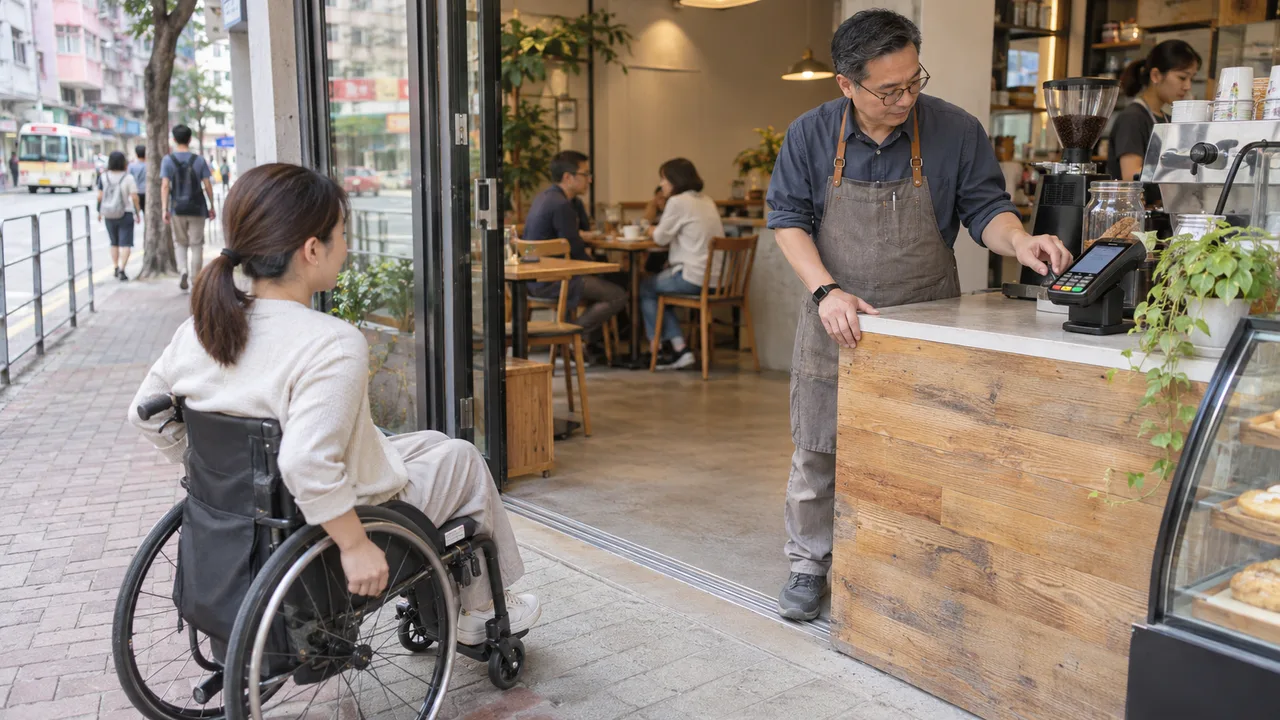
Treat each attribute as a customer promise
An attribute is a small statement with a large practical effect. A customer may choose where to go because a profile says the venue offers Wi-Fi, accepts a payment method or has a wheelchair-accessible entrance. Google's help says attributes can appear on Search, Maps and other Google surfaces, and some may influence searches for places with those features. That possibility is not a measured traffic gain for any Hong Kong shop. The useful business question is whether a visitor arriving at this exact location, at the relevant time, can actually use the feature. Begin by listing the attributes currently visible on the profile and the ones the editor offers. Compare each with a physical walk-through and the store's operating rules, rather than selecting every attractive option during profile setup.
Google distinguishes attributes a business can edit from information that may be populated from customer inputs. It also says availability varies by location, country and business category, while attribute names may change. Therefore a blank or missing option does not prove that the business lacks a feature, and an old screenshot of the editor is not a reliable menu of current choices. For each editable claim, record the exact label you see today, the location it describes, the person who checked it, and the evidence behind the answer. If a customer-supplied attribute appears wrong, record the public discrepancy and investigate the available correction route instead of assuming a staff toggle controls it. The profile's category and branch identity should already describe the real business; this audit is about factual facilities and practices, not reclassifying the company.
Verify amenities and payments where they are used
A useful test for a Wi-Fi attribute is more than seeing a router. Can an ordinary customer obtain access during normal service, and is the connection intended for customers rather than staff devices? For outdoor seating, is there genuinely usable seating, not only chairs stored outside or a temporary event setup? For a payment attribute, ask the cashier which method the active terminal accepts for an ordinary purchase, including the particular branch and counter. A payment logo on an old poster is not operational proof. Where a method is accepted only for online orders, do not let an in-store profile imply it works at the till. Google gives Amenities and Payments as examples of attribute categories and uses Yes or No controls. The owner's job is to translate those short answers into a truthful customer experience.
Consider a hypothetical café that recently replaced its card terminal. The old terminal took one wallet, while the replacement supports a different set of methods. Instead of copying last month's profile, the manager makes one low-value test transaction through the normal checkout process for each claimed method, or obtains a current terminal configuration from the payment provider and confirms it with the cashier. The manager then updates the profile answer and checks the customer-facing display after review. This is an illustrative workflow, not evidence that a particular café or provider supports a named wallet. If a terminal fails on one day, staff should correct their own website and on-site notices promptly and decide whether the profile claim has become materially misleading. The attribute should describe ordinary service, not the best case achieved once during setup.
Inspect accessibility feature by feature
Accessibility attributes need especially careful physical verification because a false Yes can send someone to a barrier they cannot cross. Google's own guidance gives distinct meanings to wheelchair-accessible entrance, restroom, seating, parking and elevator. For an entrance, Google describes a width of about one metre and no steps or stairs, or a permanent or movable ramp where steps exist; revolving doors alone are not sufficient. This is Google's profile guidance, not a legal certification of the premises. Measure and inspect the actual customer route, including the door leaf when open, the threshold, any ramp's availability and the space needed to turn. An accessible entrance says nothing by itself about the restroom or seating. Record each separately, and avoid a blanket statement that the whole venue is accessible because one route looks clear in a photograph.
The detail matters after the entrance too. Google says an accessible restroom needs an entrance at least one metre wide without steps or stairs, and a stall doorway of that width if a wheelchair user must enter a stall. Accessible seating requires a step-free main area with space to navigate to and sit at a table; standing-height tables do not satisfy the described seating attribute. A reserved accessible parking spot is a different feature again, and an elevator attribute concerns a multi-floor business with a lift large enough for a wheelchair. Check what is actually available to customers, not a locked staff facility or a neighboring building's feature. If a ramp is movable, decide who can deploy it and whether the customer can reliably request it. The outcome should be a precise set of answers, not a vague marketing phrase.
Edit deliberately, then inspect the public result
Google's current documented route is to open the Business Profile, select Edit profile and then More, choose the relevant category such as Amenities or Payments, edit the attribute, select Yes or No, and save. The exact choices shown may differ for the business. Do not infer that Save means the answer is public immediately: Google says reviews usually take about ten minutes but sometimes can take up to thirty days. Use the edit status and the public profile as separate checks. An internal note should distinguish requested edit, accepted edit and customer-visible result. This matters when a manager needs to explain a discrepancy to a customer or hand work to another shift. If the answer is uncertain, investigate first; selecting Yes because it is attractive creates a promise without evidence.
Test the final view as a customer might use it. Search for the precise branch in Google Search and Maps, inspect the attribute wording on a phone, and compare it with what the team verified on site. Where the public view is different, capture the observation time and wording, then check whether an edit is pending, rejected or being sourced from other input. Do not repeatedly change unrelated fields to force a result. Google's broader edit guidance says profile information is reviewed before it goes live and management features can differ between Search, Maps and devices. A second staff member can repeat the customer-path check without claiming independent approval. The important record is what was observed and when, not a blanket assertion that all users saw the same display.
Make changed conditions trigger a fresh check
Assign each attribute to a real operational owner. A facilities manager can confirm the entrance and restroom after renovation; a store manager can confirm seating and Wi-Fi; the cashier or payments lead can confirm accepted methods. Recheck after equipment replacement, a layout change, a move, a new branch opening, or an accessibility complaint. Distinguish a permanent change from a temporary outage. If the card terminal is down for an hour, staff may need a prominent on-site and website notice; if the method is withdrawn, the profile attribute itself should be corrected. If a ramp is routinely unavailable because it is locked away, a previously truthful Yes needs reconsideration. This routine protects the customer decision more than a calendar-only review that may miss a consequential change.
Close the audit with a short decision sheet for each location: attribute, observed condition, Yes or No decision, date checked, evidence, editor action and public follow-up. Avoid copying the same answers between branches that have different doorways, terminals or seating. If a feature is important but Google offers no suitable attribute for this category or region, put an accurate explanation on the business's own accessible page and make it easy for a customer to contact the venue for current details. That page should describe limits as well as benefits, such as which entrance to use or when assistance is available. The goal is a visitor who can plan a successful trip, not a profile decorated with the maximum number of badges.
For an accessibility claim, walk the complete visit rather than inspecting only the feature named in the editor. Start where a customer arrives, follow the actual entrance, reach the service counter, travel to seating or the restroom if relevant, and return to the exit. Note any locked door, temporary display stand, steep threshold or staff-only route that changes whether the claimed feature is usable in ordinary service. Ask the employee on duty to demonstrate any movable ramp or assistance process without making the visitor wait for an unavailable manager. If the route fails, fix the physical or operating problem before choosing Yes; where a clear limitation remains, explain it accurately on the business's own page and give customers a reliable way to ask about their needs. A single favorable photograph or a building plan cannot replace this visit test.
Before you proceed
- Every Yes has been checked at the actual branch and normal service time.
- Accessibility features are assessed separately along the customer route.
- Pending edits and public visibility are tracked separately.